Waiting…
WebP Background Remover
Feed the .webp in exactly as you found it. No converting, no uploading, no extra generation of compression between your file and the cutout that comes back.
Or drop your files here, or press Ctrl + V to paste One .webp, or the whole media library
PNG, JPG, WEBP, AVIF, GIF, BMP and HEIC · up to 30 images · max 25 MB each
Want to test it first? Pick a sample
What makes a WebP harder to cut than it looks
The format hides most of its complexity behind one extension. These are the four things that actually change how clean the edge comes out.
Lossy compression touches the alpha channel too
A lossy .webp does not just quantise colour — the opacity channel gets the same treatment. If a rough cutout was already baked in before the file reached you, that edge was softened before the model ever sees it.
Chroma subsampling blurs exactly where hair needs precision
Like a JPG, lossy WebP keeps brightness sharp but averages colour across neighbouring pixels. That is invisible on a flat background and very visible along a single strand of hair or fur.
An existing alpha channel can hide a bad cutout
A WebP that already looks transparent in your design tool can still carry a rough matte with a fringe of old backdrop attached — it only shows up once the image sits on a different colour.
An animated file only offers up one frame
The container can hold dozens of frames, but a cutout tool can only read the first one. Anything moving in the sequence has to be exported frame by frame before it can be cut.


WebP has always had room for transparency. Yours is full of solid.
This catches out more people than anything else about the format, and the confusion is understandable: the specification and the file are saying two different things.
The specification says a fourth value may accompany every pixel. Your particular photograph says that value is maximum from corner to corner, because a camera has no notion of emptiness. Removing the background rewrites the channel that was there all along — full strength across the subject, nothing at all outside it, and a soft ramp through the strands in between.
Remove backgroundFour files, one extension
Nothing on the outside of a .webp tells you which of these you have. All four go into the same tool; only the last behaves differently on the way out.
Lossy WebP
By far the most common. Compressed the way a photo is, yet still able to carry a complete opacity channel alongside the colour.
On the way out: Cut once and written out losslessly, so the file is never squeezed a second time.
Lossless WebP
Exact to the pixel. Usually what a design tool writes when the artwork has clean lines worth protecting.
On the way out: Everything inside the subject survives byte for byte — nothing is re-encoded.
WebP with alpha
Already carries a cutout somebody else made, often a rough one with a fringe of old backdrop still attached.
On the way out: The existing edge is re-cut from scratch, which clears whatever the first attempt missed.
Animated WebP
A whole sequence packed into one file, generally standing in for a GIF on a modern site.
On the way out: The opening frame is cut and returned as a still. Motion is not carried through.
Removing a WebP background in 3 steps
Start to finish inside this tab. No plugin, no queue position, no credit balance to watch.
Step 1
Hand over the original
Drag the .webp in, paste it with Ctrl + V, or browse for it. Resist the urge to convert first — an untouched file gives the sharpest boundary.
Step 2
The opacity channel is rewritten
Your browser decodes the WebP itself, then the model marks every pixel as subject, background or somewhere in between and applies that at full scale.
Step 3
Take the PNG, re-encode later
Save the lossless cutout, inspect the edge somewhere dark, and turn it back into a WebP once you are publishing rather than still editing.
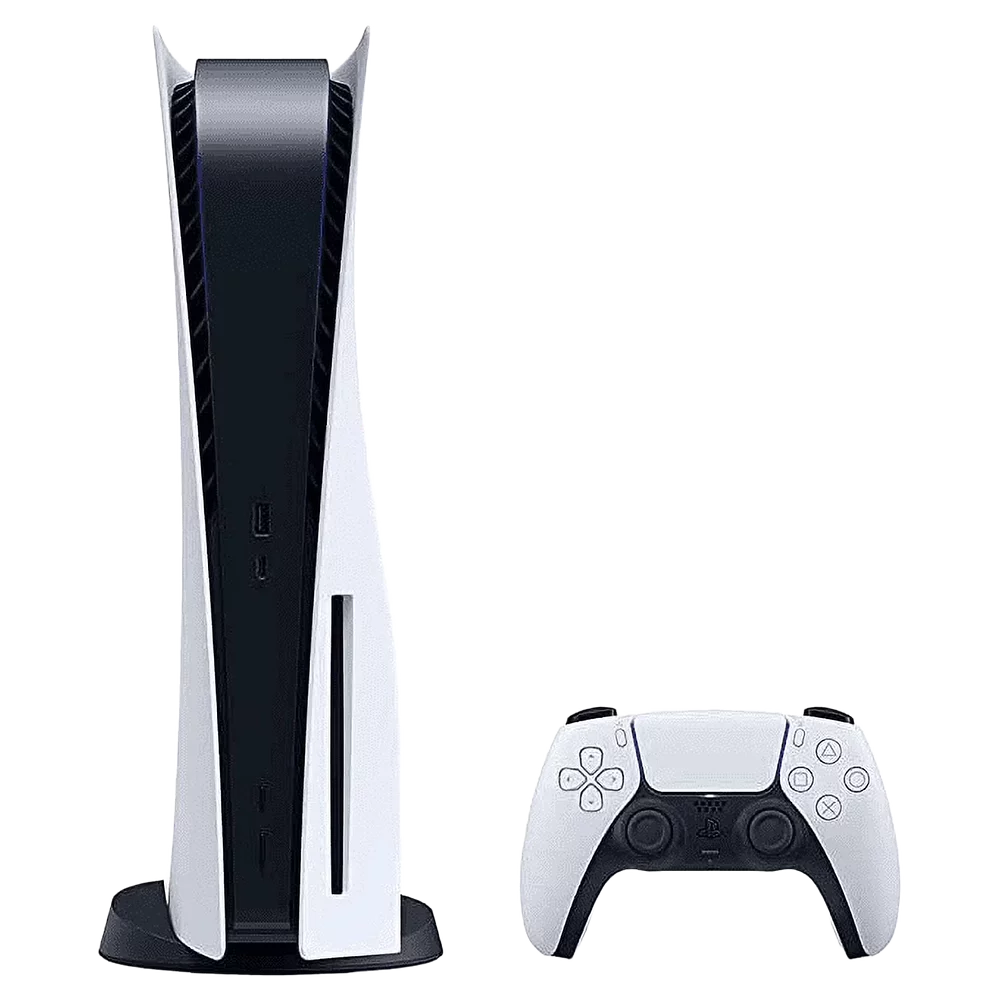
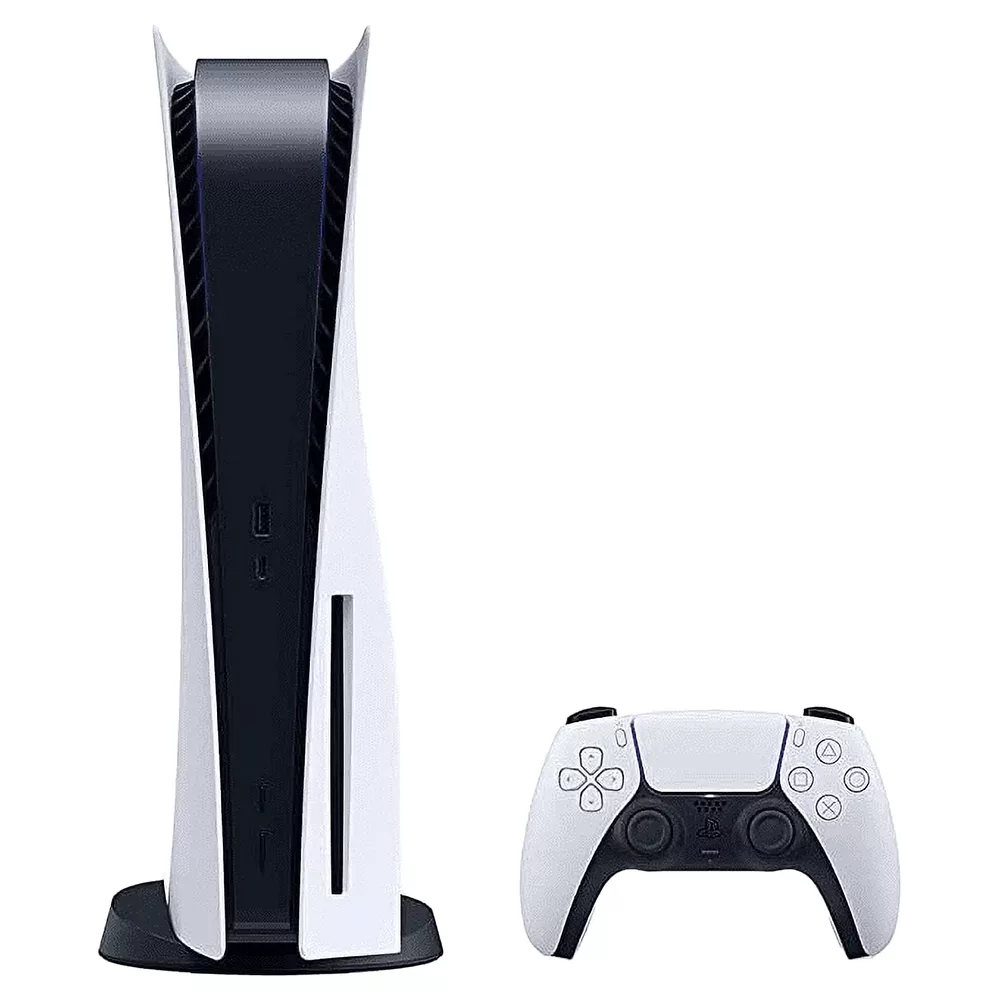
Pull the handle across a real listing photo
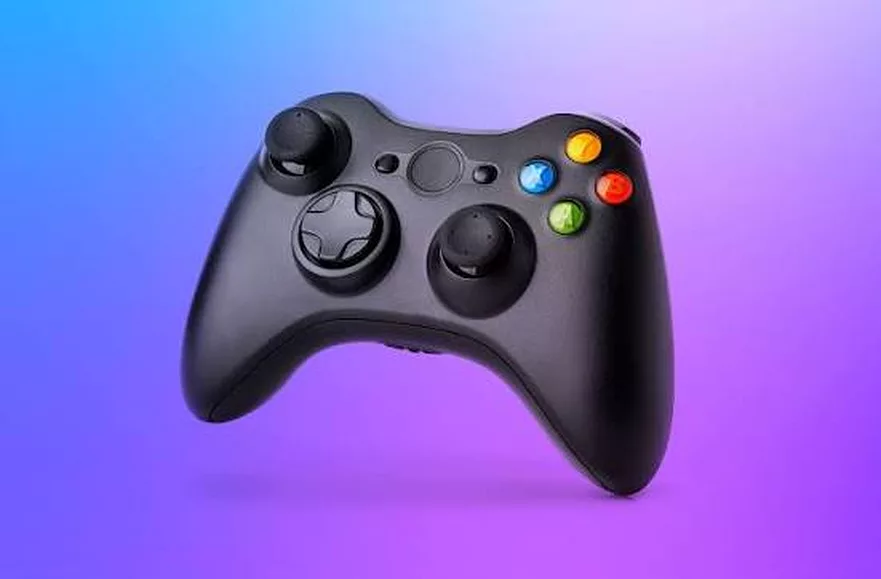
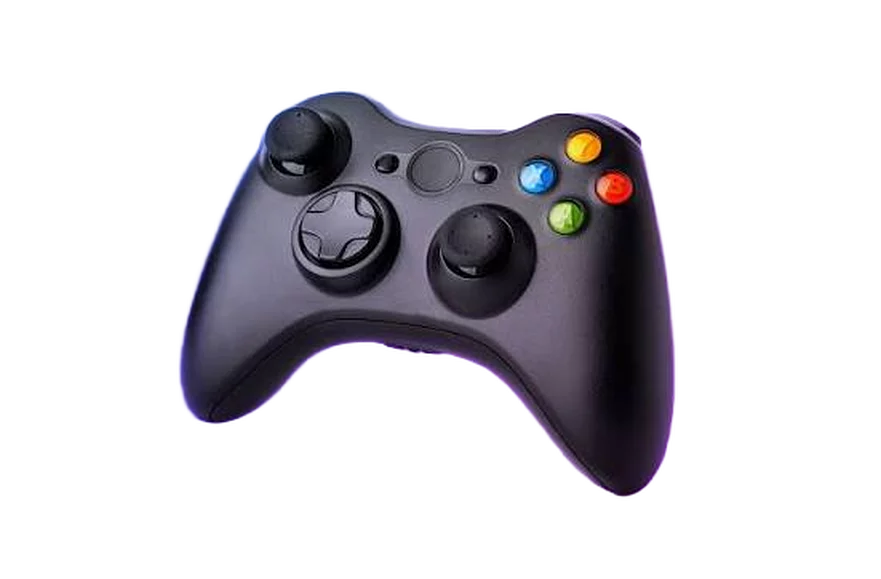
A console shot of the kind a storefront serves as WebP. One side is what the CDN gave you; the other is what the tool gives back.
Three WebPs from three different pipelines
A design tool export, a storefront listing and a file handed over by a delivery network. Same tool, same second or so of work.
Landing on PNG is a stopover, not a downgrade
Going from a small modern format to a bigger old one looks like the wrong direction. Here is why it is the right one, and how to get the size back.
1
Protect the boundary while it is still fresh
The feathered edge is the expensive part of the whole operation. A lossless container holds it exactly while you are still cropping, scaling and second-guessing the composition.
2
Judge it on the surface it will live on
Lay the cutout over the exact colour, gradient or photograph it is destined for. Fringing that white politely hides becomes obvious the moment something dark sits behind it.
3
Go back to WebP for the live site
The round trip costs the transparency nothing, and the bytes you were worried about come straight back. Keep the PNG in your own archive as the copy you re-export from.
WebP background removal FAQ
Conversion, animation, quality and what the download weighs. Not covered here? Ask us.
Drop the .webp straight into the tool above — there is no conversion step to get out of the way first, because your browser reads WebP by itself. The model marks out the subject on your own device and the cutout appears in the workspace ready to save.
No, and doing so would only cost you time and a little quality. Converting re-encodes the picture before the model has even seen it. Feeding the original .webp in gives the cleanest possible edge, because nothing has been through an extra generation of compression.
Being able to store transparency and actually storing some are two different states. A photograph saved as WebP has an opacity channel in which every single value reads solid. The cutout is what replaces those values with real emptiness around your subject.
PNG is the safest place for a freshly cut edge to land. It is lossless, every program on earth opens it, and no upload form will reject it. Once you are happy with the result, re-encoding it to WebP for publishing keeps the transparency perfectly.
You get a still image cut from the first frame. If the whole sequence needs cutting, export the frames as separate files and queue them together — the batch handles thirty at a time and returns them in one ZIP.
Marginally, and only right at the boundary. Lossy encoding smooths very fine contrast, which leaves the model slightly less to read along hair or thread. At the quality settings shops and CDNs actually use, you would struggle to spot the difference.
Completely. WebP compresses aggressively and the export here is deliberately lossless, so a jump in size is the normal outcome. Converting the finished PNG back to WebP recovers most of it and the alpha channel comes along unharmed.
It does not. The model is fetched once and cached by your browser, after which every image is handled locally through WebGPU or WebAssembly. Pull the network cable after the page loads and the tool carries on working exactly the same.
Drop a .webp in and see how fast it is
Nothing to convert, nothing to upload, nothing to sign. Thirty files a batch and the same engine behind every format we handle.