Waiting…
Background
Cut the subject out, then drop it onto white, navy, brand blue, soft grey or any custom colour you pick. The swap happens on your own device and the original resolution stays intact.
Or drop your files here, or press Ctrl + V to paste Choose a photo, or several at once
PNG, JPG, WEBP, AVIF, GIF, BMP and HEIC · up to 30 images · max 25 MB each
Try it on one of ours first
Waiting…
Background
Four short moves. The only decision you have to make is which colour to land on.
Drag it onto the panel above, paste from your clipboard, or browse your folders. The subject can be a person, a product or a pet — the cut works the same way.
A segmentation model works out exactly where your subject ends, in a second or two, without a lasso or a magic wand.
Every result comes with its own swatch grid — fifteen solid colours, a transparent option, plus a picker for any shade of your own. Click through them and the big preview updates instantly.
Press download and a PNG comes back with your subject sitting on the flat colour you chose, at the resolution you supplied.
Left of the handle is the photo as it arrived. Right of it is the same product with its background color changed to brand blue.

Different goals, same move: keep the subject, replace whatever was behind it.
Most official photo rules call for a plain white or light grey backdrop. Swap whatever is actually behind you for the colour the form demands.
Give every product shot the same clean backdrop, even when the originals were taken in different rooms, on different days, against different walls.
Match one background colour across a whole team page without booking a studio, so nobody is left on a mismatched wall.
A plain, consistent backdrop reads as more professional than a cluttered room, a car seat or whatever happened to be behind you.
Drop a product onto the exact brand colour a poster, banner or packaging mockup needs, instead of leaving the original room in the shot.
Set a single flat colour behind your profile picture so it looks intentional next to a dozen other tiles, not just cropped.
Why settle for whatever happened to be behind you? Swap it out in seconds — pick one of the preset colours below the dropzone, or keep clicking through them until one feels right.
The model handles the hard part, working out exactly where your subject ends. All that is left for you to do is choose where it lands next.
Most marketplaces will not list a product shot that isn't on a clean, consistent background. Pick the white swatch and every pixel outside your subject becomes genuine white — not a close approximation, not a slight grey cast.
A studio session is not the only way to get a clean headshot. Take the photo anywhere — a bedroom, an office, a park bench — then swap whatever is behind you for a plain, professional backdrop.
The same photo that looked like a casual snapshot now reads as a profile picture, with nothing in frame to distract from your face.

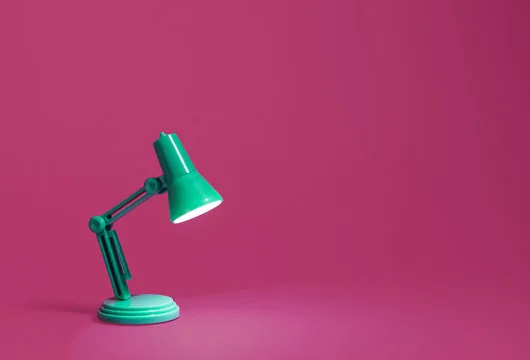
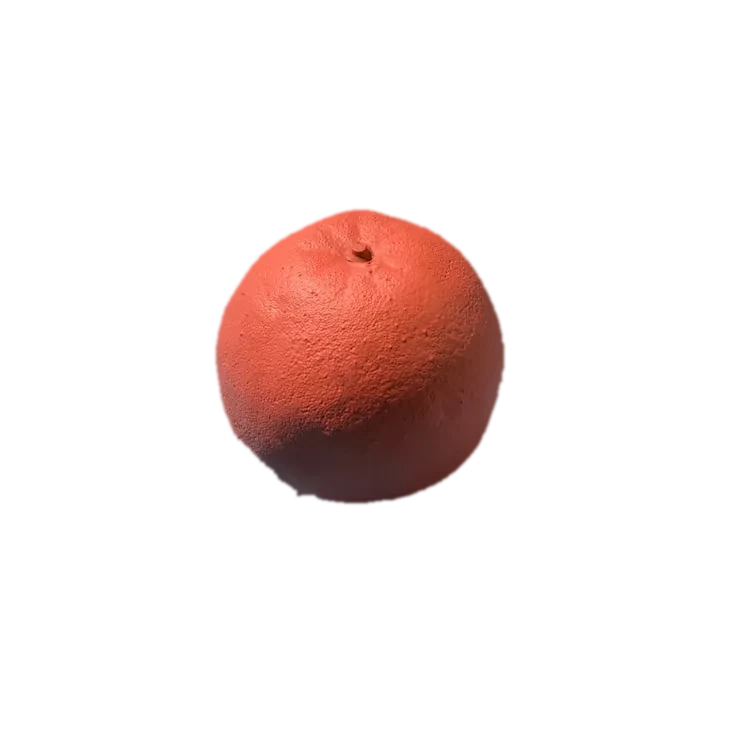
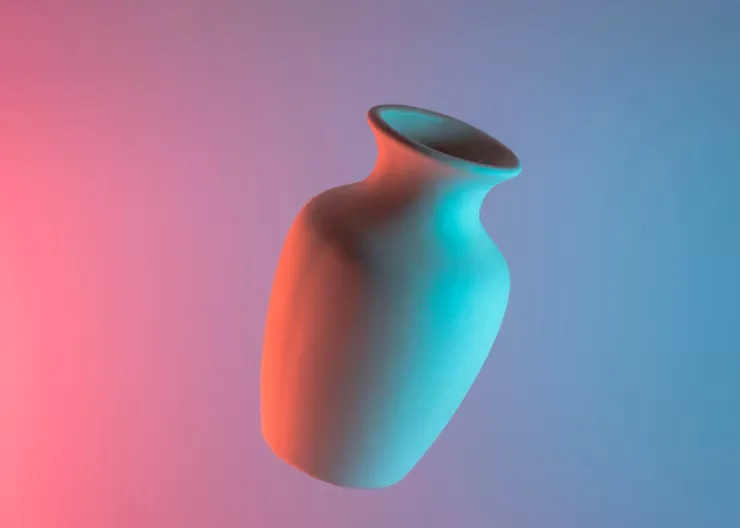
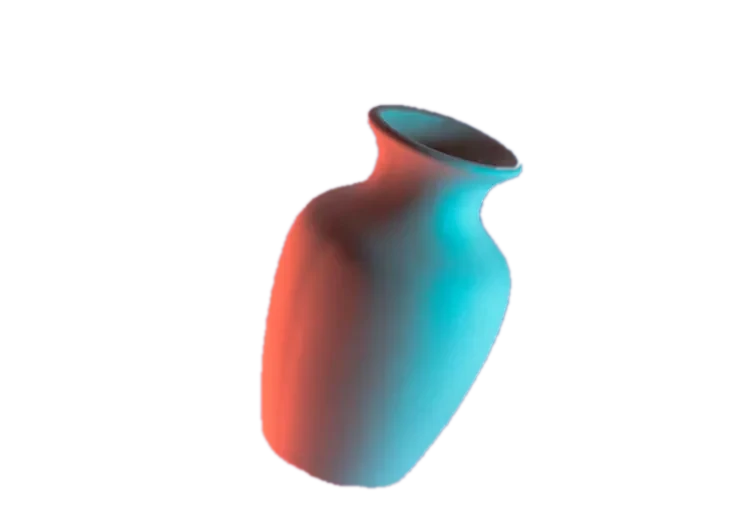
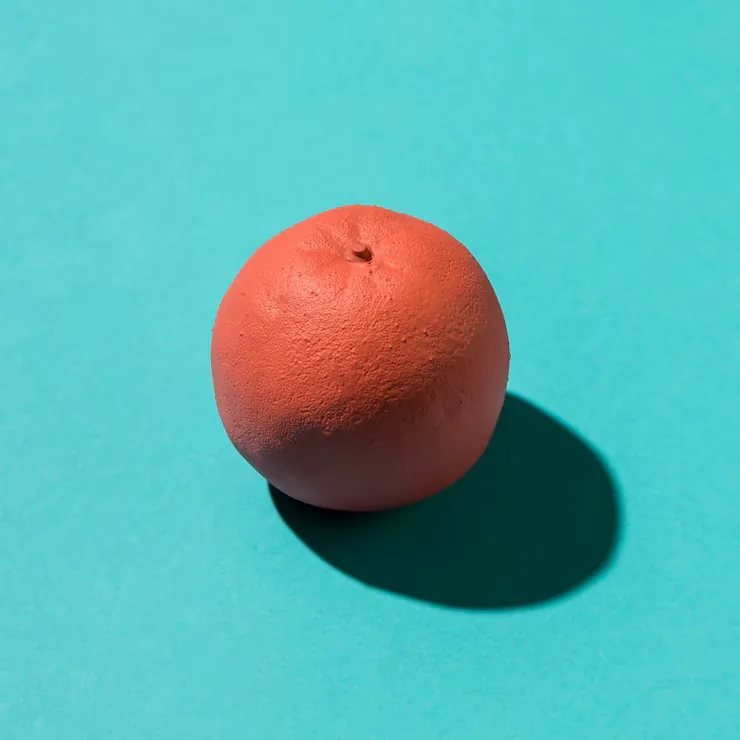
One cutout, five results. The lamp, the vase and the citrus fruit below are each shown on five of the fifteen ready-made colours in the tool above — plus any shade you pick yourself.
Desk lamp
Ceramic vase
Citrus fruit
Colours, batching and ID photo rules. Still puzzled? Ask us.
Add the photo to the tool at the top of this page, wait for the cutout to finish, then pick a colour from the swatches in the workspace — white, navy, brand blue, soft grey or a custom shade. Press download and the exported PNG has your subject sitting on that flat colour.
Each result comes with fifteen solid colours ready to click plus a Transparent option, and the last tile is a full colour picker, so any hex value you need — a specific brand colour, a form-mandated grey, anything — is available.
You can change the backdrop to plain white or light grey this way, which covers the backdrop requirement many forms list. ID photo rules also cover framing, lighting and expression, which this tool does not check, so confirm those separately against the exact requirements for your document.
Leave the swatch on the checkerboard one, labelled Transparent, instead of picking a colour. The export is then a PNG with a genuine alpha channel rather than a flat fill, which the dedicated transparent background maker covers in more depth.
Yes. Queue up to 30 images and each one gets its own preview and swatch grid, so different photos can land on different colours in the same batch. Download each result once you are happy with the colour showing.
No. Only the pixels outside the cut are replaced with the flat colour. Everything inside the subject — detail, colour, resolution — is left exactly as the original photo had it.
No. The cutout and the colour swap both happen inside your browser using a locally downloaded AI model. The photo never leaves your device.
Yes — no account, no credits, no watermark and no limit on how many photos you run through it.
Nothing to install, nothing to pay for and nothing leaving your machine. The main background remover adds transparency, batches and every other format.